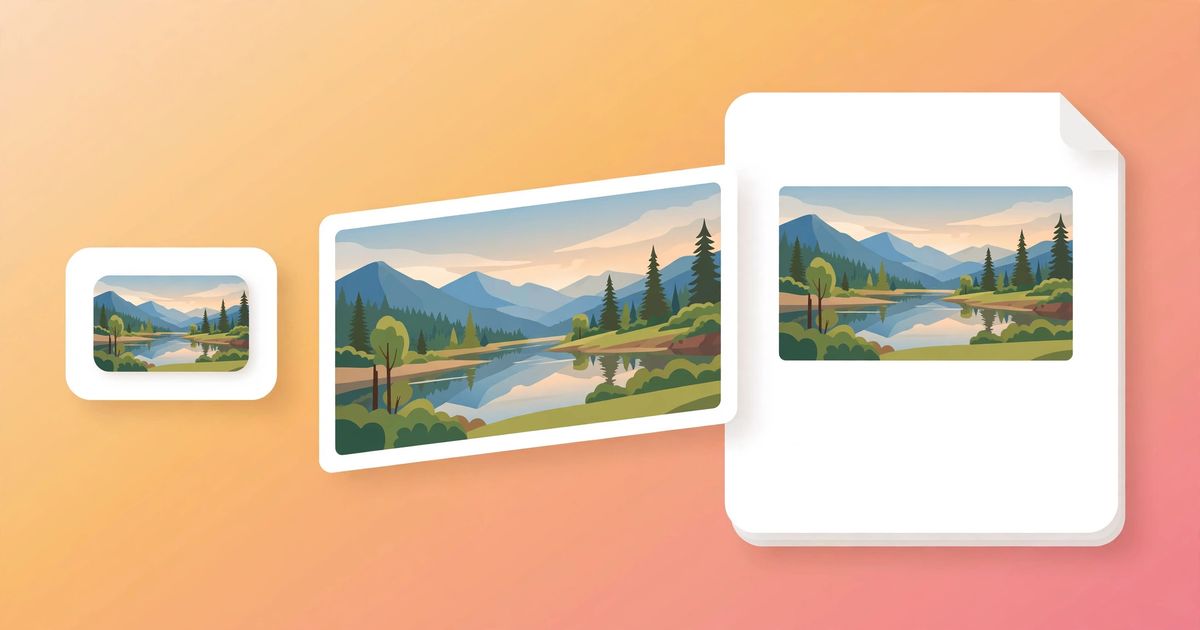
Converting a JPEG to PDF means wrapping one or more JPG images into a PDF document — the same fixed-layout format that looks identical on every device. It takes seconds, it is free, and you do not need to install anything: your browser, your phone, or the print dialog on your computer can all do it. This guide walks through each method and shows how to keep quality high.
Why convert at all? A PDF keeps your images in order, on separate pages, in a single file that anyone can open — no photo app required. That makes it the right format for scanned forms, receipts, photo portfolios, and homework.
A JPG is a picture; a PDF is a document that happens to contain pictures. If the format itself is new to you, our guide to what a PDF file actually is explains it from the ground up.
The Fastest Way: Convert in Your Browser
Open a free converter in your browser, drop in your JPG files, and download the PDF. Nothing installs, and the best converters process the images on your device, so the photos never leave your computer. Rearrange the pages before converting if the order matters — the file order is the page order.
Watch the output size: a PDF made from phone photos can be several megabytes per page. If the file will be emailed, shrink the images first — our image compressor reduces JPG size in the browser before you convert.
Print to PDF on Windows
Windows has a built-in PDF printer, so any program that can open a photo can turn it into a PDF. Open the image, press Ctrl + P, and choose "Microsoft Print to PDF" as the printer. Pick the page size and orientation, click Print, and choose where to save the file.
If "Microsoft Print to PDF" is missing from the printer list, it was turned off in Windows Features. Turn it back on under Settings → Apps → Optional features, or in the classic "Turn Windows features on or off" panel, then try again.
The same print dialog works for web pages too. Google's guide to printing from Chrome covers the steps: Ctrl + P, choose "Save as PDF", and the page becomes a PDF file. It is the same destination, whether the source is a photo or a web page.
Print to PDF on Mac
On a Mac, open the image in Preview, then choose File → Export as PDF — or press Cmd + P and click "PDF" in the print dialog, then "Save as PDF". Preview also lets you open several images at once and export them as a single multi-page PDF.
The print dialog route is the flexible one: it lets you set the paper size, scale, and orientation before saving. For a single photo, Export as PDF is faster. Either way, the result is a standard PDF that opens anywhere.
Convert on Your Phone
On an iPhone, open the photo, tap Share, then Print. On the print preview, pinch outward with two fingers — the preview turns into a PDF you can share or save to Files. On Android, open the photo in Google Photos, tap Share, then Print, and choose "Save as PDF".
Phone methods are best for one or two images. For a whole album, use the browser method on a computer instead — dragging twenty photos into a print dialog on a phone is slow, and the page order is harder to control.
One PDF From Many Images
A multi-page PDF is just your images in order, one per page. Sort the files before you convert — by name, date, or the order they appear in the converter — and check the page size: A4 suits documents, while a square or photo ratio suits pictures. Mixed sizes in one PDF look untidy, so keep them consistent.
If the pages come out in the wrong order, rename the files with numbers — 01, 02, 03 — and convert again. It is the simplest fix, and it works in every tool. Once the PDF is built, you can merge the result with other PDFs if the document grows later.
Keep Quality High and File Size Small
A JPEG is already compressed, so converting it to PDF does not make it sharper — it only wraps it. Quality is lost earlier, when the photo was taken or saved. To keep a PDF crisp, start from the highest-quality JPG you have, and avoid re-saving the same image over and over. The JPEG standard itself is explained in full in Wikipedia's JPEG article.
File size is the trade-off. A PDF of ten phone photos can pass 20 MB, which many email systems reject. Compress your images first — it shrinks JPG files in the browser — or lower the print quality to 150 DPI for documents that will only be read on screen.
Methods Compared
Every method below is free, and all of them produce a standard PDF. Pick by how many images you have, whether you want to install anything, and how much control you need over page size.
| Method | Best for | Needs install | Quality |
|---|---|---|---|
| Browser converter | Many images, fast | No | High |
| Windows Print to PDF | Any app, one by one | No, built in | High |
| Mac Preview | One or a few images | No | High |
| Phone (Print → Save as PDF) | One or two photos | No | Good |
For most jobs, the browser converter wins: it handles batches, shows a preview, and needs no setup. The print methods are the backup when you are offline or already have the photo open. And if you ever need the reverse, you can convert PDF pages back to JPG images just as easily.
Best JPEG to PDF Converter: What to Look For
The best JPEG to PDF converter is the one that converts in your browser, shows a preview of the pages, and never asks for an email address before downloading. Anything that demands a signup for a one-page conversion is selling your attention, not a service.
If you convert JPG to PDF online regularly, the details matter: batch uploads, page reordering, and a size warning before you download. A converter that warns you when the PDF passes 25 MB saves you an email bounce later. Free tools that do all three are easy to find — the method matters more than the brand.
Scan Photos to PDF on Android
A photo of a paper document is not the same as a scan — tilted edges, shadows, and glare make it hard to read. Dociq, an Android app, turns phone photos into clean PDF scans: it straightens the page, removes shadows, and exports a proper PDF you can share or print.
The free tier covers 10 exports a month with no watermarks and no signup — enough for receipts, forms, and the odd school note. If you scan often, the habit that pays off is doing it in good light: a flat page under a bright lamp beats any amount of cleanup afterwards.
Frequently Asked Questions
What is the best JPEG to PDF converter?
The one that works in your browser, shows a page preview, and downloads without asking for an email. For a single photo, your phone's print-to-PDF does the same job with no tool at all.
Will converting JPG to PDF reduce quality?
No — the conversion only wraps the image in a PDF, it does not re-compress it. Quality drops only if the tool shrinks the image first, so check the settings before converting.
How do I combine many JPGs into one PDF?
Add them all to a browser converter in the order you want, one image per page, then download a single PDF. If the order is wrong, rename the files with numbers — 01, 02, 03 — and convert again.
Can I convert a JPEG to PDF on my phone?
Yes. On iPhone, share the photo, tap Print, and pinch out on the preview to save it as a PDF. On Android, share from Google Photos, tap Print, and choose Save as PDF.
How do I convert a PDF back to JPG?
The other way round is just as easy: a converter renders each PDF page as a JPG image, free in your browser with no signup. Each page becomes one image file. Use our free PDF to JPG converter.
What is a PDF file, exactly?
A PDF is a fixed-layout document format that looks the same on every device — text, images, and layout frozen in one file. It was created by Adobe in 1993 and has been an open ISO standard since 2008.
By Rahib Ali