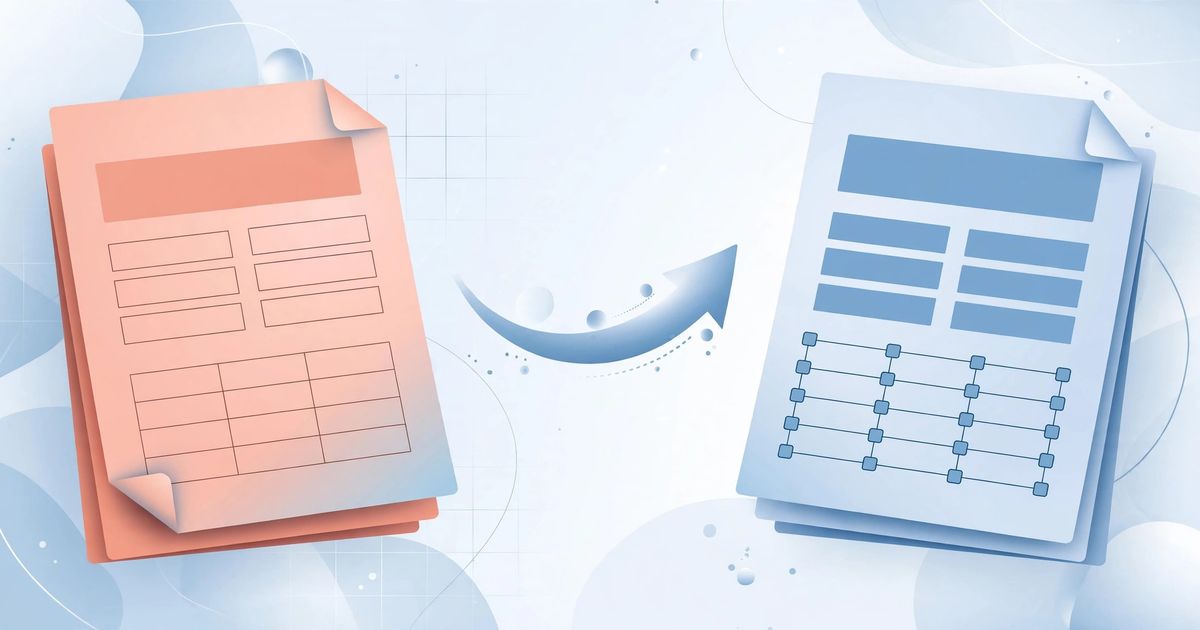
A PDF to Word converter turns a locked-down PDF into a document you can edit. The good news: you can do it free, with no signup, in your browser, and keep most of your formatting. The catch is that not every file converts cleanly, and the right tool depends on what is inside your PDF. This guide compares the free options that work, shows the exact steps, and tells you what to check before you send the file on.
The short answer: for a one-off file, Adobe's free online converter is the most reliable starting point. It handles tables and multi-column layouts better than most free tools, and it works without an account, though daily limits apply. If the PDF is on your computer and you already have Microsoft Word, opening it in Word converts it without uploading anything. Google Docs works too, through Drive. Pick based on the file, not the brand.
How to Convert PDF to Word Free in 3 Steps
Take a real example: a two-page supplier invoice saved as a PDF. You need to change the quantities and send it back as a Word file. Open Adobe's free PDF to Word converter, drop the file in, and download the .docx it returns. Open the result in Word or Google Docs, fix the quantities, and check the table lines up before you send it. The whole job takes about two minutes when the PDF has real text in it.
- Upload the PDF. Use a converter you trust, and check whether it deletes your file after conversion. Adobe's tool states the conversion is free with no sign-up, and it asks you to sign in only if you convert again.
- Download the .docx. Save it under a new name so the original PDF stays untouched. That way you can always re-run the conversion if the first attempt mangles a table.
- Open it and proofread. Skim every page, not just the first one. Conversion errors hide on page two: a merged table cell, a heading that jumped a line, a bullet list that lost its indent.
If the result looks wrong, do not keep re-running the same tool and hoping. Try a different converter, because each one rebuilds the layout with its own rules. A file that breaks in one tool often comes out clean in another. And if the PDF is a scan of a printed page, no ordinary converter will work until the text is recognised — that case is covered further down.
PDF to Word Converter Free: Which Option Fits Your File?
There is no single best free converter. Each one trades something away: convenience, privacy, formatting quality, or a daily limit. The table below matches the tool to the job, so you can stop guessing.
| Option | Best for | Signup | Watch out for |
|---|---|---|---|
| Adobe Acrobat free online converter | One-off files, tables, multi-column layouts | No, within daily limits | Daily conversion limits; repeat use asks you to sign in |
| Microsoft Word | Files already on your PC; keeping the file offline | No, needs Word | Complex layouts can shift; proofread before sending |
| Google Docs via Drive | Quick edits and sharing a link | Google account | Some formatting is lost; tables can collapse |
| LibreOffice Writer | Offline conversion with no upload | No | Rougher formatting on complex PDFs |
Adobe's converter is the safest first try for most people, because it was built by the company that created the PDF format. Its free tier converts a PDF to an editable Word document with no sign-up, credit card, or subscription, and formatting such as paragraphs, tables, and columns is generally carried over. The limit is volume: free use is capped per day, and converting again may ask you to sign in.
Microsoft Word is the better choice when privacy matters. Word can open a PDF file directly and convert it into an editable document on your own computer, so the file never leaves your machine. Microsoft's own support pages describe editing a PDF in Word. The trade-off is formatting: Word rebuilds the document from the PDF's text, and heavily designed pages can reflow in ways you need to fix by hand.
Google Docs sits in the middle. Upload the PDF to Drive, open it with Docs, and Google converts it into an editable document you can share with a link. It is fast and free with a Google account, but it is the roughest of the three on formatting. Use it for simple letters and reports, not for a designed invoice or a form with tight tables.
What Breaks Most Often When You Convert PDF to Word Online Free
Most complaints about conversion are not about the tool. They are about the gap between what a PDF is and what a Word document is. A PDF records exactly where every letter sits on the page. A Word document records text that flows, and the layout is rebuilt every time the window changes. Converting means guessing the flow from fixed positions, and guesses go wrong in predictable places.
- Tables. Cells merge, columns narrow, and a row can split across a page break. Check every table cell against the original, especially totals and dates.
- Multi-column layouts. Two columns of text can collapse into one long column, or read across the page in the wrong order. Newsletters and brochures suffer most.
- Fonts. If the PDF uses a font your computer does not have, Word substitutes the nearest match. Headings may change size and spacing, and the whole document can reflow.
- Headers, footers, and page numbers. These often land in the body text, or vanish entirely. Check the top and bottom of every page.
- Images and charts. Pictures usually survive, but captions can drift away from them, and a chart built from vector shapes may arrive as one flat image you cannot edit.
- Footnotes and endnotes. These are the first thing to check after a conversion. A footnote that becomes plain body text is easy to miss and embarrassing to send.
The fix is boring but effective: after every conversion, print-preview the document and compare it page by page with the PDF. Five minutes of checking saves the awkward email that starts with a corrected attachment.
Scanned PDFs Need OCR First
Here is the diagnosis that saves the most time. Try selecting a sentence in the PDF with your mouse. If you can highlight the text, the PDF has a real text layer and any converter above will work. If you cannot select anything, the PDF is a scan — a photograph of a page — and there is no text to convert yet.
A scanned PDF needs OCR, optical character recognition, before it can become an editable Word file. OCR reads the shapes of the letters in the image and turns them into text. Adobe's converter applies OCR to complex scanned PDFs, and Word can sometimes handle simple scans too, but a poor-quality scan will still produce garbled words. If accuracy matters, scan at 300 dpi or higher, keep the page flat, and check the result word by word.
If your source is paper rather than a file, scan it to PDF first. Dociq, the free Android scanner app from the makers of FrostRank, turns a photo of a page into a clean PDF you can then convert. That two-step route — scan, then convert — is how most people end up with an editable Word file from a printed letter or contract.
PDF to DOCX: What Actually Changes in the File
A .docx file is not a page picture. It is a zip archive of XML files that describe text, styles, and structure, and Word rebuilds the page from those instructions each time it opens the file. That is why a PDF to DOCX conversion can change a document even when nothing looks wrong at first glance.
Three things change in almost every conversion. First, exact positioning becomes flowing text, so a line that sat precisely under a heading may move when the font changes. Second, fonts may be substituted, which shifts line breaks across the whole document. Third, the file size changes: a PDF with embedded fonts and images often becomes a smaller .docx, or a larger one if images are stored at full resolution.
None of this is a reason to avoid converting. It is a reason to convert early, while you still have time to fix the layout, rather than ten minutes before a deadline. The .docx you send should be the document you proofread, not the first file the converter handed you.
Keep Your Formatting: A 5-Point Check Before You Send the File
Run this check on every converted document. It takes five minutes and catches nearly every conversion error.
- Headings. Are they still styled as headings, not just big bold text? Real heading styles keep the document navigable and let you build a table of contents.
- Tables. Open the original PDF side by side. Are all rows, columns, and totals identical? Pay attention to numbers — a merged cell can hide a figure.
- Page breaks. Does any paragraph split awkwardly across pages, or does a heading sit alone at the bottom of a page? Fix breaks before sending.
- Images. Is every picture in the right place, with its caption attached? A chart that arrived as a flat image cannot be edited, so note that for the reader if it matters.
- Fonts. If the document uses an unusual font, either keep it and accept substitution on the reader's machine, or switch the whole document to a common font such as Calibri or Arial.
One more habit helps: if the PDF contains heavy images you plan to reuse in the Word file, compress them first with a free image compressor so the .docx stays small enough to email. Large images are the most common reason a converted document will not send.
More From FrostRank
Converting files is only half the job — the other half is getting the result into the shape you need. If you need the pages as pictures instead of text, our guide to converting PDF pages to JPG images covers the free options.
And if the PDF holds a table of figures you need as data rather than as a document, a structured format is the better target — read what a JSON file is and how to open one before you copy the table by hand.
Frequently Asked Questions
Is it safe to convert PDF to Word online free?
It depends on the tool and the document. Use a converter from a known provider, check whether it deletes uploads after conversion, and never upload contracts, IDs, or financial records to a site you cannot verify. For sensitive files, convert offline in Microsoft Word or LibreOffice instead, so the file never leaves your computer.
Will the formatting stay exactly the same after conversion?
Usually not exactly. Simple documents with one column of text convert cleanly. Tables, multi-column layouts, unusual fonts, and footnotes often need manual fixes. Always proofread the converted file page by page before sending it.
Can I convert a scanned PDF to Word?
Yes, but only after OCR. A scanned PDF is an image, not text, so run it through a converter with OCR — Adobe's free tool applies it to complex scans — or scan the page again at higher quality. Check the result carefully, because OCR misreads characters on poor scans.
How do I convert PDF to Word without Adobe?
Open the PDF directly in Microsoft Word, which converts it into an editable document on your computer. Google Docs via Drive and LibreOffice Writer are free alternatives. Word keeps the file offline; Docs needs a Google account; LibreOffice is free and works without an upload.
Is there a daily limit on free PDF to Word converters?
Yes, most free online converters cap how many files you can convert per day. Adobe's free tool applies daily limits and may ask you to sign in if you convert again. If you convert files all day, a desktop tool such as Word or LibreOffice has no daily cap.