
Google Preferred Sources lets your readers choose your site as one of their preferred sources in Google Search. Once they do, your content is more likely to appear in Top Stories with a preferred badge, and it can also carry that badge in AI Mode and AI Overviews. Adding your site takes two lines of code, or a single deeplink if you cannot use JavaScript.
One honest note before the steps: Preferred Sources is not a ranking factor. Google has never said it improves rankings, and it does not push your pages higher for people who have not chosen you. What it does is simpler and still valuable: for readers who already picked your site, your fresh content shows up more often, with a badge that marks it as their choice.
What Is Google Preferred Sources?
Searches for preferred sources google usually come from two kinds of people: site owners who want to add their publication, and readers who want to pick the sites they see.
Preferred Sources is a personalization setting in Google Search. A signed-in reader picks the sites they want to hear from, and Google adjusts what that person sees. It is a switch on the reader's side of the screen, not a setting you control for everyone. Your job as a site owner is to make it easy for your readers to find the switch and choose you.
The feature started in Top Stories, the news module Google shows for news-oriented searches. A reader taps the star icon next to Top Stories, searches for a publication by name, and ticks the checkbox. From then on, that reader sees the publication's fresh, relevant stories more often, sometimes in a dedicated "From your sources" section below the main carousel.
Where Do Preferred Sources Appear?
Preferred sources show up in three places. The first is Top Stories, where your content is more likely to appear and carries a preferred badge. The second and third are AI Mode and AI Overviews, where your content can be highlighted with the same badge for readers who selected you. The difference matters: Top Stories gives you a weighting effect, while the AI surfaces give you a label.
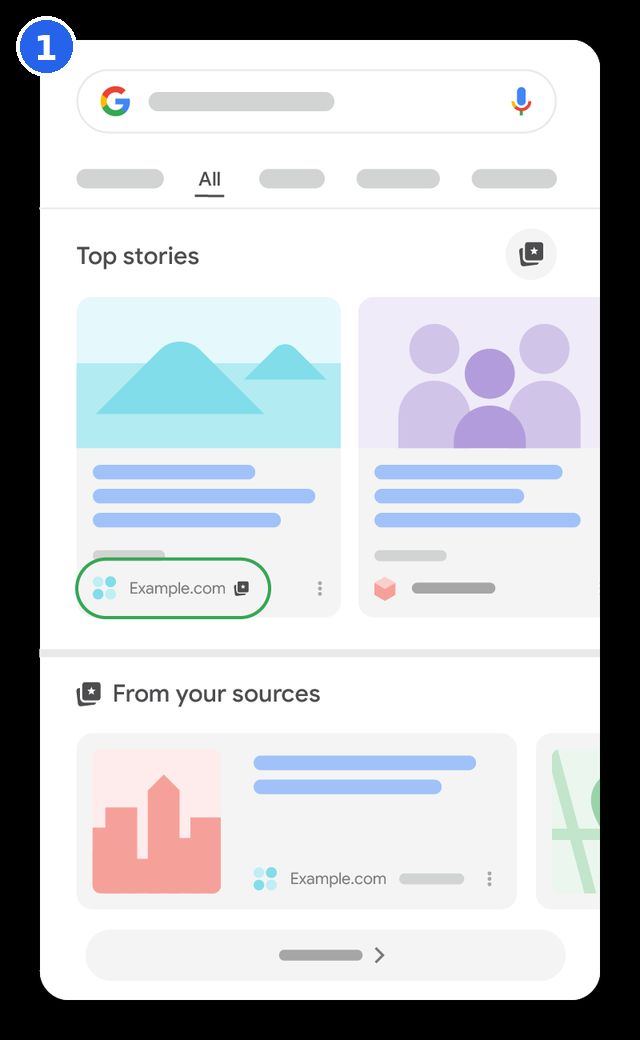
In Top Stories, the badge sits next to your site's name on the story card, and your stories can also appear in the "From your sources" row. The badge only appears for readers who already chose you. Everyone else sees the normal Top Stories module, with your stories mixed in as usual when they are fresh and relevant.
In AI Mode and AI Overviews, the effect is narrower. Google says your content "can be highlighted with a preferred badge" there. It does not say your content is more likely to be cited in an AI answer. That is an important distinction: the badge helps a reader spot your link inside an AI answer, but it does not make the AI choose your page.
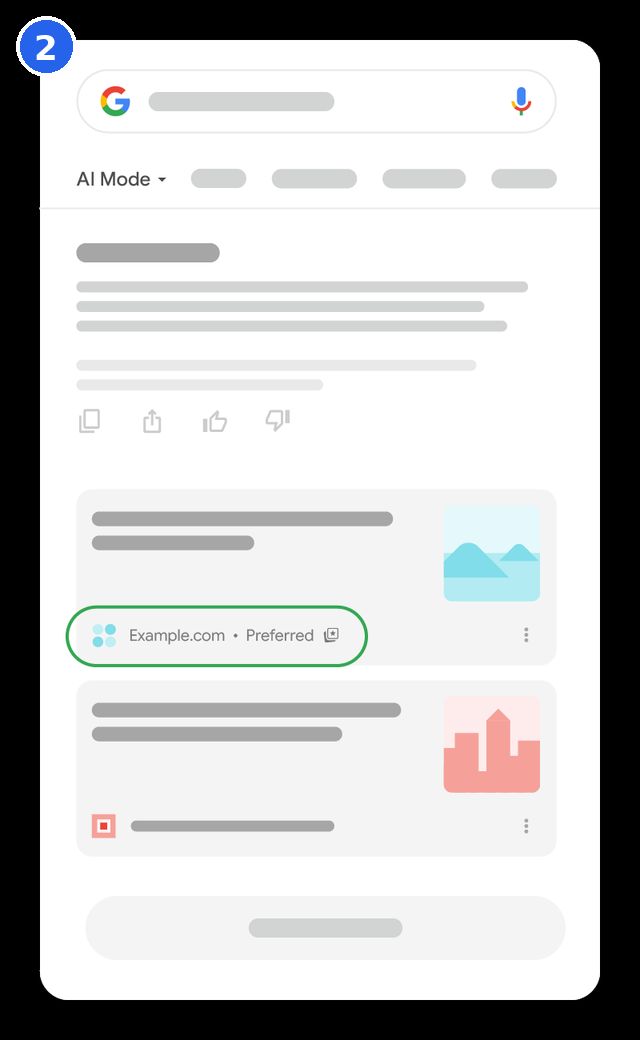
If AI visibility is your goal, Preferred Sources is one small piece of a bigger picture. Our guide to getting cited in Google AI Overviews covers the ranking and content side, and our AI Mode November updates post explains what changed in AI Mode. A preferred badge helps readers find you; the content itself still has to earn the citation.
Does Preferred Sources Improve Your Rankings?
No. Google has never described Preferred Sources as an input to ranking, and no announcement about the feature claims it. The documentation is careful with its words: content is "more likely to appear" in Top Stories, and "can be highlighted" in AI Mode and AI Overviews. Those are statements about one reader's personal results, not about your position in the rankings for everyone.
That does not make the feature useless. A reader who picks your site is a reader who wants your work. When that reader searches a news topic and your fresh story appears with a preferred badge, the click is far more likely to be yours than a stranger's. Google reported in December 2025 that readers click a preferred source about twice as much on average. The value is loyalty and repeat visits, not a ranking shortcut.
Who Can Add Their Site?
Only domain-level and subdomain-level sites can appear in the source preferences tool. That means example.com and blog.example.com are eligible, but example.com/blog is not. If your publication lives in a subdirectory, it cannot be chosen on its own. This is a common reason a site does not show up in the tool.
There are two more conditions. First, your site must be included in Search generative AI features in Search Console, which is what makes it eligible for display in AI Mode and AI Overviews. Second, Google notes that sources which are not updated regularly may not be available as selectable sources. A site that publishes once a year will struggle to appear, no matter how good the button is.
How to Add Your Site as a Preferred Source
Google gives publishers three ways to help readers add their site. The JavaScript button is the recommended route and takes two lines of code. The advanced JavaScript option lets you use your own design. The deeplink works anywhere you cannot run JavaScript, including social posts and newsletters. Pick the one that fits your site.
Method 1: The JavaScript Button (Recommended)
Add the library script to your page, ideally in the head element, and place the button div wherever you want the button to appear. Google renders an automatically translated, Google-styled button that matches the reader's language. The reader clicks it, confirms, and returns to your page.
<script async src="https://news.google.com/swg/js/v1/publisher.js"></script>
<div google-add-preferred-source-btn></div>
The full code and options are in Google's official Preferred Sources guide.
You can set the button theme to light or dark with a data attribute, and override the language the same way. The default is the light theme, and the language follows the reader's browser settings unless you override it. Use dark only if your page background is dark; a light button can be hard to see on a dark page.
<div google-add-preferred-source-btn data-theme="dark"></div>
<div google-add-preferred-source-btn data-lang="en"></div>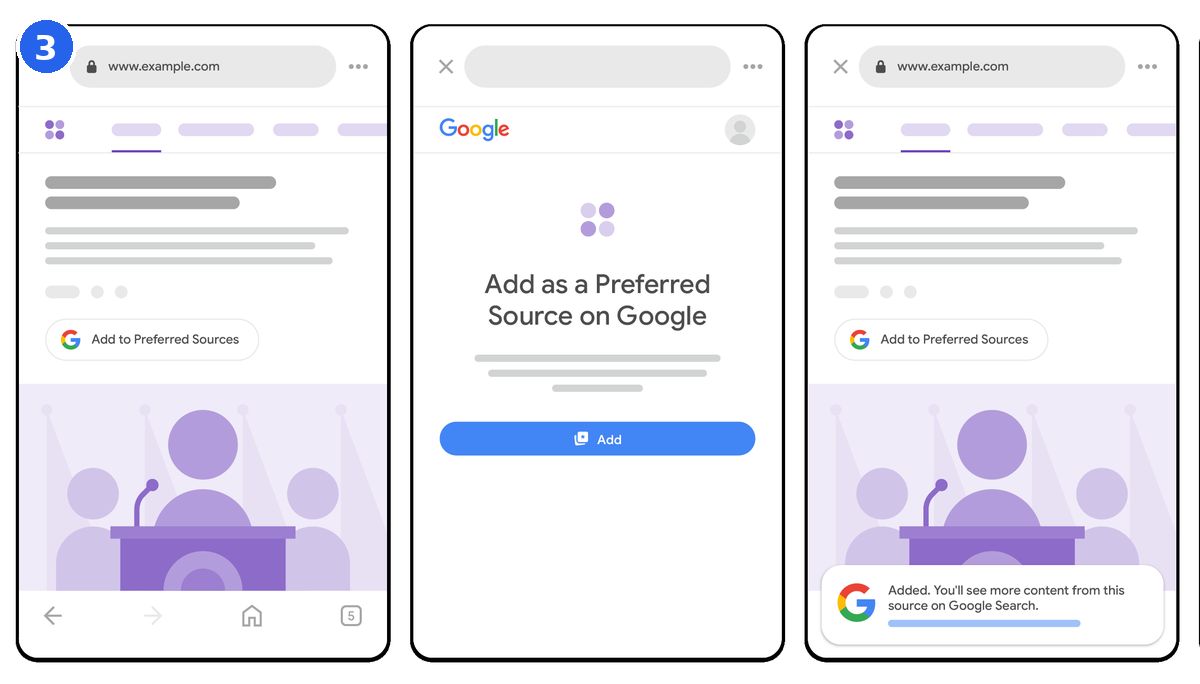
Method 2: Advanced JavaScript With Your Own Design
If you want your own button design or want to trigger the flow from your own interface, use the JavaScript SDK. You can import it as an ES Module or load the standard script with manual control, then call the add function from your own click handler. The end-user flow stays the same as the standard button.
import { preferredSource } from "https://news.google.com/swg/js/v1/publisher.mjs";
preferredSource.init({ theme: 'light', lang: 'en' });
document.querySelector('#myButton').onclick = () => {
  preferredSource.addPreferredSource();
};
This option suits sites with a custom design system or a framework setup. For most publishers, the standard button is the better choice: it is less code, it is maintained by Google, and it is automatically translated. Only reach for the SDK when the standard button genuinely does not fit your design.
Method 3: The Deeplink
If your CMS does not support JavaScript, use a deeplink instead. It sends the reader to the source preferences tool with your site already entered, where they confirm the selection. You can put the link behind text or an image on your pages, and you can also share it in social posts, email newsletters, and promotions.
https://www.google.com/preferences/source?q=example.comReplace example.com with your own domain. A text link looks like this:
<a href="https://www.google.com/preferences/source?q=example.com">Add as Preferred Source</a>Before you publish any of these, check that your site appears in the source preferences tool by entering your domain in its search box. If it does not appear, the button and the deeplink will not help yet. Fix the eligibility issues first: publish regularly, and confirm your Search Console settings for generative AI features.
How Readers Add Your Site Themselves
Not every reader will find your button. Many will add you from inside Google Search. The steps are simple: search for a recent news topic, and when Top Stories appears, click the star icon on the right of the Top Stories header. Then search for your publication by name, tick the checkbox, and click Reload results.
Readers can also manage their choices from their Google account: open Search personalization, then Source preferences, and search for sources there. They can remove a source the same way, at any time. That is worth remembering: a preferred source is earned again with every story, and a reader can undo it in seconds.
The full reader-side steps are on Google's help page for preferred sources.
How Preferred Sources Got Here
The feature moved fast. It began as a Search Labs test in mid-2025, reached the United States and India within two months, and went global in under a year. The timeline below shows the milestones that matter for publishers.
| Date | What happened |
|---|---|
| June 2025 | Search Labs test begins |
| August 12, 2025 | Launch in Top Stories in the United States and India |
| December 10, 2025 | Google reports nearly 90,000 unique sources selected, and readers clicking preferred sources about twice as much on average |
| December 16, 2025 | Expands to English-language users worldwide |
| April 30, 2026 | Available in all languages; more than 200,000 unique sites selected |
| May 27, 2026 | Extends to AI Overviews and AI Mode |
| August 20, 2026 | Embeddable JavaScript button launches for publishers; more than 600,000 unique sites selected |
| October 2026 | Search Console begins reporting selection counts to publishers |
What It Means for Publishers
The numbers show steady growth: from nearly 90,000 selected sources in December 2025 to more than 200,000 by April 2026, and more than 600,000 by August 2026. That is a large number of sites readers actively choose from. For a small publisher, even a few hundred loyal readers choosing you is a steadier stream of visits than chasing one-off rankings.
The practical lesson is to treat the button as a loyalty tool, not a traffic trick. Place it where your most loyal readers will see it: at the end of articles, on your about page, and in your newsletter. Ask once, clearly, and explain what the reader gets: more of your stories when they search the news. Do not paste it on every page or beg for the click; readers can tell the difference.
Fresh content is the real requirement. Preferred sources only surface when they have recent coverage that fits the reader's query. A button on a site that has not published in months will not bring visits, because there is nothing fresh for Google to show. Publish regularly, and the button has something to work with.
Mistakes to Avoid
- Expecting a ranking boost: Preferred Sources does not change your rankings. Treat it as a loyalty channel, not an SEO shortcut.
- Hiding the button: a button buried in the footer where nobody looks will not be clicked. Put it where engaged readers finish reading.
- Using a subdirectory blog: example.com/blog cannot be selected on its own. Only a domain or subdomain can appear in the tool.
- Publishing once and stopping: without fresh stories, your site has nothing to show in Top Stories, badge or not.
- Copying the code wrong: the script tag and the div must both be present. Test the button on your own site before asking readers to use it.
Frequently Asked Questions
What is a Google Preferred Source?
A Google Preferred Source is a website a signed-in reader has chosen in Google Search. Once selected, that site's fresh, relevant content appears more often in the reader's Top Stories, marked with a preferred badge, and can also carry the badge in AI Mode and AI Overviews.
What does "Add as a preferred source on Google" mean?
It means the reader is asking Google to show them more content from that site. The site joins the reader's personal list of preferred sources, and its stories appear more often in Top Stories, or in a dedicated "From your sources" section, when they are fresh and relevant.
How do I add my site as a preferred source on Google?
As a site owner, you add a two-line JavaScript button to your pages, or a deeplink if your CMS does not support JavaScript. First check that your domain appears in the source preferences tool, then place the button where loyal readers will see it. Readers add you by clicking it, or from the star icon next to Top Stories.
Can I add blog posts as a Google preferred source?
No. Only domain-level and subdomain-level sites can be selected. A single blog post, or a blog living in a subdirectory such as example.com/blog, cannot be chosen on its own.
Does Preferred Sources improve rankings?
No. Google has never called it a ranking input. It changes what one reader sees, not your position in the rankings for everyone. Its value is repeat visits from readers who chose you.
Where do preferred sources appear?
In Top Stories, where your content is more likely to appear with a preferred badge; and in AI Mode and AI Overviews, where your content can be highlighted with the badge. The feature is available globally for Top Stories in all languages where Google Search is available.
Conclusion
Preferred Sources is a small, honest tool: it rewards publishers who earn loyal readers and publish fresh stories. Add the button, place it where your best readers will see it, and keep publishing. The badge will not make you rank, but it will help the readers who chose you keep finding you.