What a vCard QR code does
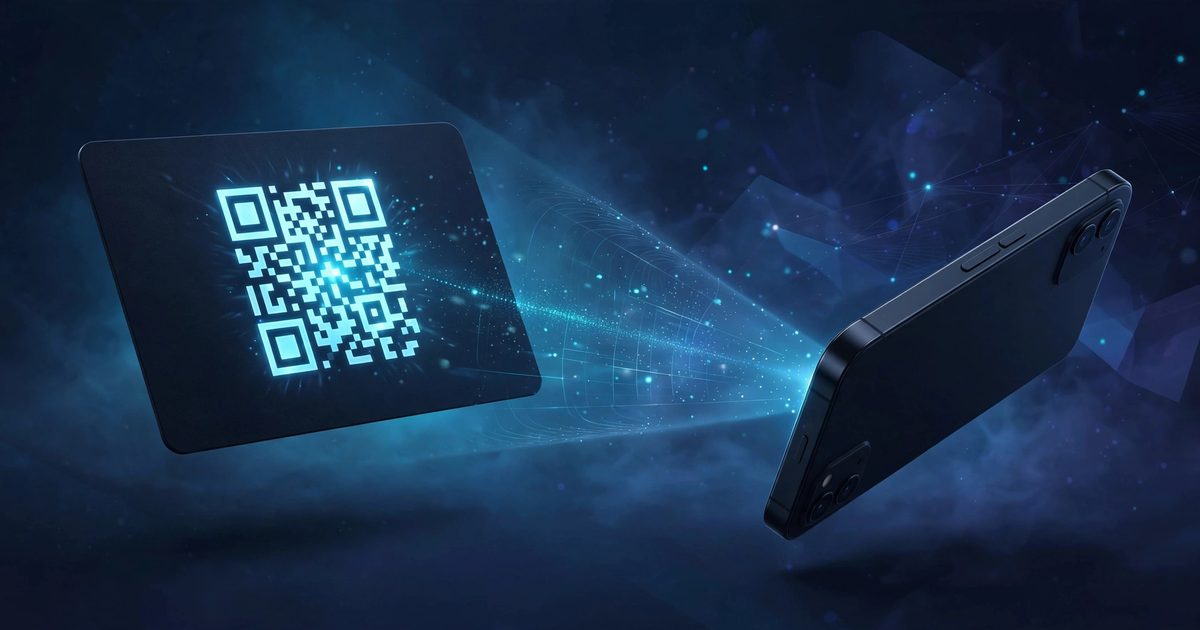
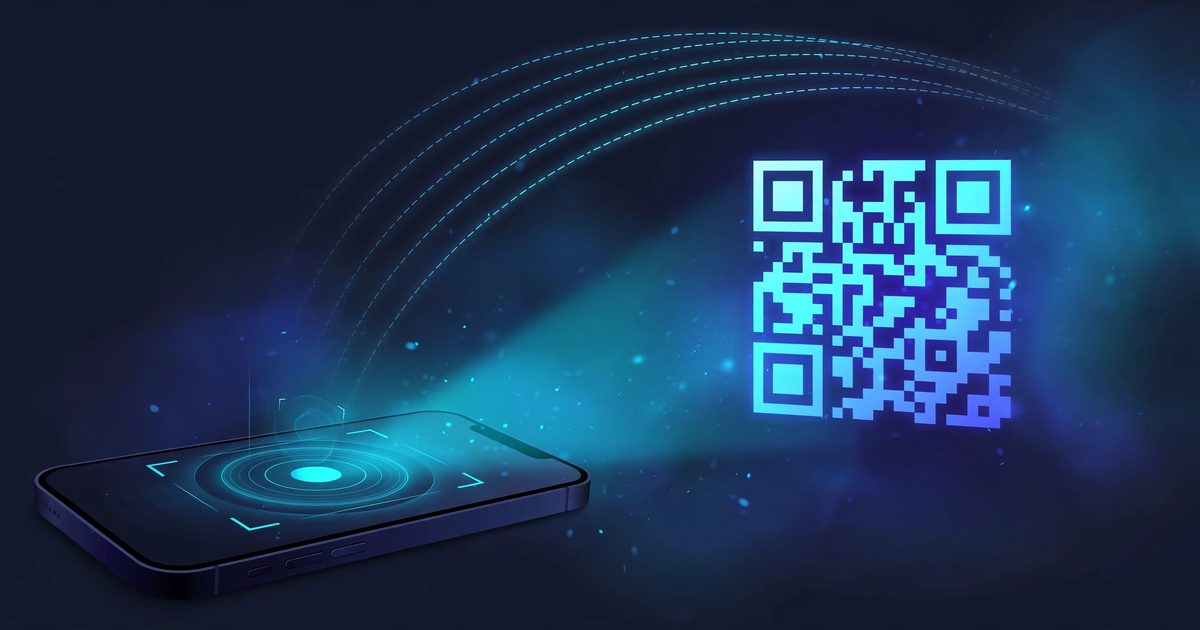
A vCard QR code turns your contact details into a single scannable square. Someone points their phone camera at it and gets an "Add to contacts" prompt — your name, phone number, email, and company saved in one tap, with zero typing and zero misheard digits. No app to install, no account to create, no link to open.
It's the digital answer to the oldest networking problem: you meet someone, you want them to have your number, and reciting it aloud guarantees at least one wrong digit. A qr code business card fixes that for freelancers handing out cards at meetups, salespeople at trade shows, job seekers at career fairs, and anyone whose phone number lives behind a "just text me" that never quite happens.
What the code actually contains
Under the pattern sits a vCard — the same contact-file format phones have exchanged for decades, standardized in RFC 6350, the vCard Format Specification. It encodes structured fields: your formatted name, phone numbers (tagged mobile, work, home), email addresses, organization and job title, website, and even a postal address. When a phone scans the code, it recognizes the format natively and offers to create a contact with every field already filled in.
That universality is the whole point. Unlike platform-specific sharing tricks, a vCard QR works on iPhone and Android alike, needs no Bluetooth pairing, and doesn't care whether the other person has the same apps you do.
Make yours in 60 seconds
- Open the free QR code generator and switch to the Contact tab.
- Fill in your details — first and last name, phone, email, organization, and website. Only add what you'd happily hand a stranger; every field you enter is embedded in the code.
- Download the PNG or SVG, or print it at a real size. A code on a business card only needs to be about 2 cm wide to scan reliably from a normal holding distance.
Everything is generated in your browser, so your contact details never leave your device. Test it before you print a batch: scan it with both an iPhone and an Android phone and confirm the "add contact" prompt appears with every field correct.
Where a contact QR code earns its keep
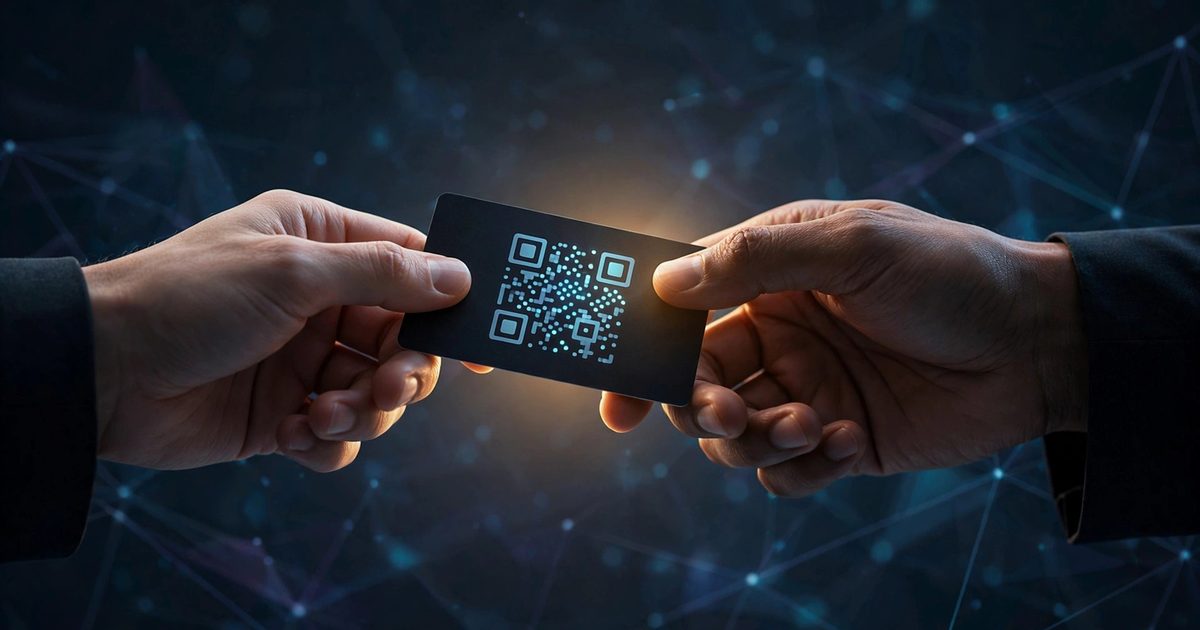
- Business cards. The classic. One corner of the card carries the code; the recipient scans instead of typing. Keep the printed name and number too, for the people who still prefer reading.
- Conference badges and lanyards. At busy events nobody wants to fumble with phones. A code on your badge lets conversations end with a scan instead of a spelling bee.
- Email signatures. A small code under your signature gives recipients a one-tap way to save you — especially useful for sales and support roles.
- Freelancer profiles and portfolios. Put one on your "contact" page or link-in-bio so potential clients can save your details straight from their phone.
- Shop counters and reception desks. "Scan to save our number" beats a stack of cards that walks away, and it never runs out.
- Resumes. Recruiters skim dozens of CVs; a code in the header lets yours land in their contacts in seconds.
vCard QR vs. the other ways to share contact info
| Method | Works on | Needs | Printable | Signup |
|---|---|---|---|---|
| vCard QR code | Any phone with a camera | Nothing | Yes | No |
| iPhone NameDrop | iPhones only (iOS 17.1+) | Two unlocked iPhones, close together | No | No (Apple Account) |
| NFC digital business cards | NFC-capable phones | A physical NFC card/tag | N/A (it's hardware) | Usually yes |
| Link-in-bio / digital card page | Any phone with a browser | Internet connection, hosted profile | Only as a URL code | Usually yes |
Apple's NameDrop is slick when both people have recent iPhones, but it fails the moment one person has an Android — or when you want the code on a printed card. NFC cards feel futuristic until you price them per person. The contact tab of the QR tool wins on universality: it works for everyone, costs nothing, and prints anywhere.
Why static is the right call for contact codes
Contact details change rarely — maybe a new job every few years — so there's no reason to route them through a subscription service. A static vCard QR encodes everything directly in the pattern: it never expires, needs no account, and keeps working even if the generator disappears. Dynamic codes let you edit details after printing, but they die the moment the provider's service does. For the full tradeoff, see the complete QR codes guide.
Frequently asked questions
Does the other person need an app to scan a vCard QR code?
No. Every modern phone camera reads QR codes natively and recognizes the vCard format, offering an "add contact" prompt automatically.
Will it work on both iPhone and Android?
Yes. The vCard format is a decades-old open standard, so both platforms handle it. That's the main advantage over Apple-only tricks like NameDrop.
What happens if my phone number changes?
The old code keeps pointing at the old number, because the details are baked into the pattern. Generate a fresh code and reprint — it takes a minute, which is exactly why static codes suit contact info that changes rarely.
Can I include my photo or company logo?
A vCard can technically carry a photo, but it bloats the code and makes it harder to scan. Better: keep the vCard lean (text fields only) and add your logo as a center image on the QR itself — FrostRank's QR generator raises error correction automatically so a logo doesn't break scanning.
Is my contact data uploaded anywhere when I generate the code?
Not with a client-side generator: everything happens in your browser and nothing is sent to a server. Be wary of tools that require an account first — there's no technical reason a QR generator needs your email.
What's the difference between vCard and meCard?
Both encode contact details in a QR code; vCard is the international open standard (RFC 6350) understood by every phone, while meCard is a simpler NTT DoCoMo format with narrower support. For maximum compatibility, vCard is the safe choice.


Comments
No comments yet. Be the first to share your thoughts below.