A password manager is an app that stores all your passwords in one encrypted vault, unlocked by a single master password. You remember one strong password; the manager remembers the rest — and it can create long, random passwords you would never invent yourself. If you use the same password on more than one site, or you keep resetting passwords because you forgot them, a password manager is the fix that actually sticks.
This article explains what a password manager does in plain English: how the vault works, how it differs from the password storage built into your browser, what to look for when choosing one, and how to start in an afternoon. No technical background needed — if you can use a notes app, you can use a password manager.
What a Password Manager Actually Does
A password manager does three jobs. First, it stores every login you have — website, username, password — in one place, so you stop keeping them in your head, in a notebook, or in a spreadsheet. Second, it creates strong passwords for you: long, random strings of letters, numbers, and symbols that no one could guess and no cracking tool could brute-force in a reasonable time.
Third, it fills those passwords in for you. When you visit a site you have saved, the manager offers to log you in with one click or a fingerprint. You never type the password, you never see it, and you never have to remember whether this site wanted the one with the exclamation mark or the one with the dog's name in it.
Most managers also do useful extras: they warn you when a password has appeared in a known data breach, flag passwords you reuse across sites, and store more than logins — secure notes, card details, and one-time codes. The core job never changes, though: one strong master password, and everything else handled for you.
How the Vault and Master Password Work
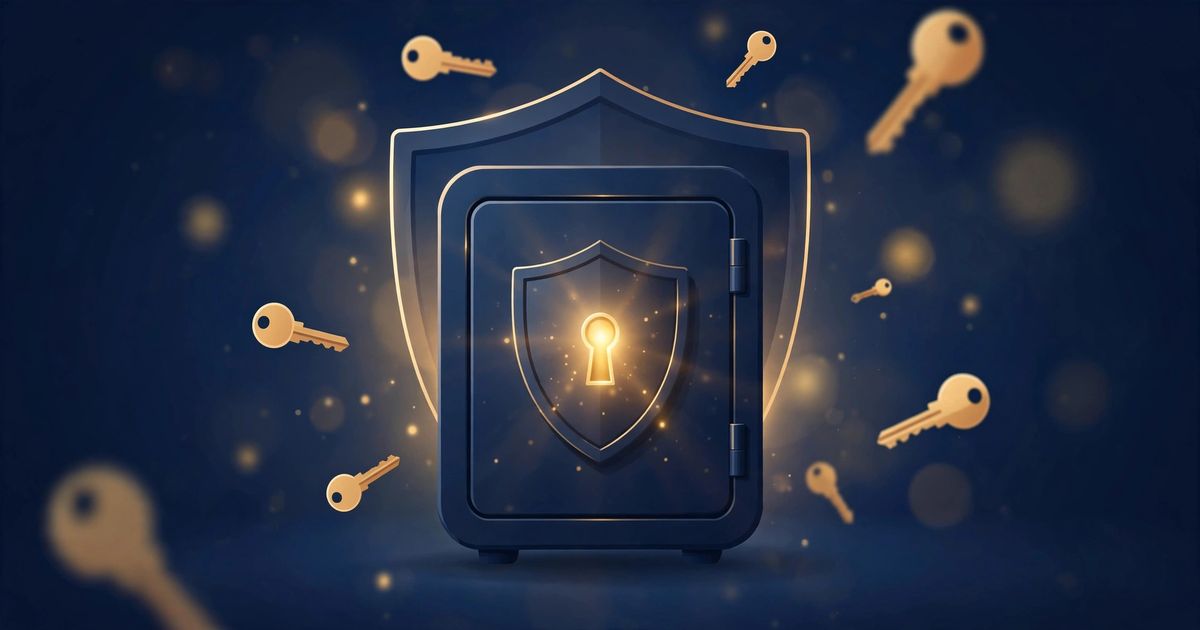
Think of a password manager as a safe with one key. Your passwords sit inside an encrypted vault — scrambled into unreadable data by a mathematical process that only your master password can reverse. Without that master password, the contents are useless noise. Even the company that makes the manager cannot open your vault, because it never has your master password.
This design has a name: zero-knowledge encryption. It means the provider stores your encrypted vault on its servers so it can sync between your devices, but it cannot read what is inside. The encryption happens on your device before anything is uploaded, and the decryption happens on your device when you unlock the vault. The UK National Cyber Security Centre's password guidance explains why this model is trusted: the secret never leaves your hands.
That is also why the master password matters so much. It is the one password you must remember, and it should be the strongest one you own — a long passphrase of four or five random words is ideal. If someone gets your master password, they get everything. If you forget it, most managers genuinely cannot recover your vault for you, because they never had access to it in the first place.
Password Manager vs Browser Password Storage
Your browser already saves passwords — Chrome, Firefox, Safari, and Edge all offer to remember logins. So why use a separate manager? The short answer is that browser storage is convenient but limited. It works well inside one browser on one device, and it gets awkward the moment you switch browsers, use a second device, or want features like breach alerts and secure sharing.
A dedicated password manager works across every browser and device you own, syncs everywhere, and is built for one job rather than bolted onto a browser. It also tends to be better at the details: generating truly random passwords, warning you about reused or breached ones, and filling logins only on the real site — which protects you from phishing pages that look like the real thing.
| Password manager | Browser password storage | |
|---|---|---|
| Works across browsers | Yes — Chrome, Firefox, Safari, Edge | No — tied to one browser |
| Syncs across devices | Yes, on phones, tablets, and computers | Only within the same browser account |
| Generates random passwords | Yes, with length and character controls | Basic, and varies by browser |
| Breach and reuse alerts | Yes, in most managers | Limited or absent |
| Stores notes and cards | Yes | Rarely |
| Phishing protection | Only fills logins on the matching site | Weaker — relies on the browser |
| Cost | Free options exist; paid plans are a few dollars a month | Free, built in |
Browser storage is still far better than reusing one password everywhere. If you are choosing between the two, a dedicated manager wins on security and flexibility — but the browser's built-in storage is a genuine improvement over no manager at all, and it is where many people sensibly start.
What to Look For When Picking One
Choosing a password manager is simpler than the comparison articles make it look. The essentials are few, and almost every established manager has them. Start with encryption: the vault should be encrypted on your device with a strong, standard method, and the provider should never hold your master password. Any reputable manager will state this plainly; if it does not, move on.
Next, check the everyday experience. It should autofill logins in your browser and on your phone, sync between your devices, and let you export your data — so you are never locked in. A password generator with adjustable length and characters is essential, since strong random passwords are half the point of the tool. Our password security guide explains what "strong" actually means if you want the detail.
Two features separate the good managers from the basic ones. Breach monitoring tells you when a password you use has appeared in a leaked database, so you can change it before someone else uses it. Emergency access lets a trusted person get into your vault if something happens to you — worth setting up once and forgetting about. Neither is essential on day one, but both matter over years of use.
Finally, consider the business model. Free managers from established companies are fine for most people, and paid plans typically add family sharing, more storage, and priority support. Avoid managers that are free with no clear way the company earns money, and avoid any tool that asks you to store passwords in plain text. The US Cybersecurity and Infrastructure Security Agency's advice on choosing and protecting passwords makes the same point: use a reputable manager, and make the master password long.
How to Start: Your First Strong Passwords
Starting is easier than most people expect, and it takes about an hour. Install the manager on your phone and computer, create your account, and choose your master password — a passphrase of four or five unrelated words, something like "correct horse battery staple" in spirit but with your own words. Write it on paper and keep that paper somewhere safe until you have typed it enough times to remember it.
Then change your most important passwords first: email, banking, and your main social accounts. Your email account is the most important of all, because password resets for everything else go through it. Use the manager's generator — or FrostRank's free Password Generator — to create a long random password for each one, and let the manager save it as you go.
After the critical accounts, work through the rest at your own pace. Every time you log in somewhere, let the manager save the login and, where the site allows it, replace a weak or reused password with a fresh random one. Within a few weeks, most of your accounts will have unique, strong passwords — and you will have stopped thinking about passwords almost entirely.
If a site rejects your new password, the problem is usually the site's own rules, not the password. Our guide to why passwords get rejected covers the common causes, from hidden length limits to banned symbols, so you can fix the password instead of weakening it.
The Habits That Make It Work
A password manager only helps if you actually use it, and three habits make the difference. First, never reuse a password. Reuse is the single biggest password risk there is: one breached site hands attackers the key to every other account that shares the password. A manager removes the only real excuse for reuse, which is that unique passwords are impossible to remember.
Second, turn on two-factor authentication for your important accounts — email, banking, and the manager itself. A password manager and two-factor authentication solve different problems: the manager keeps your passwords strong and unique, while the second factor protects you when a password leaks anyway. Together they cover the two most common ways accounts get taken over.
Third, keep a backup of your vault and a way back in. Most managers offer an emergency kit or recovery code — a printable sheet with the information needed to recover your account. Print it, store it somewhere safe, and check once a year that you still know where it is. A vault you cannot open is no better than passwords you cannot remember.
What a Password Manager Can't Do
Honesty matters here: a password manager is not magic. It cannot protect you if you hand your password to a phishing site yourself, and it cannot fix a website that stores passwords insecurely on its own servers. If a service you use is breached, your password for that service is exposed no matter how strong it was — which is exactly why every password must be unique, so one breach stays one breach.
It also cannot make a weak master password strong, and it cannot help if someone gets physical access to your unlocked phone or computer. Lock your devices, use a screen lock, and set the manager to lock itself after a short time. The US NIST authentication guidelines make the same point in formal terms: length and uniqueness matter more than complexity rules, and no single control covers everything.
None of this is a reason to skip a manager — it is the reason to use one alongside the other basics. Strong unique passwords, two-factor authentication, and a locked device together cover nearly every realistic way an account gets taken over.
Frequently Asked Questions
Are password managers safe?
Yes. Reputable password managers encrypt your vault on your device before it ever leaves it, and the provider cannot read your passwords — a design called zero-knowledge encryption. The far bigger risk is the alternative: reusing a few memorable passwords across dozens of sites. Security agencies in the US and UK both recommend password managers for exactly this reason.
What happens if I forget my master password?
With most managers, you cannot get your vault back — the provider genuinely cannot reset a password it never knew. That is the price of zero-knowledge encryption. Protect yourself by choosing a memorable passphrase, writing it on paper and storing that paper safely, and setting up the manager's recovery options or emergency access while you still remember it.
Is a free password manager enough?
For most people, yes. Free plans from established managers cover the essentials: unlimited passwords on your devices, a password generator, and sync. Paid plans add family sharing, breach monitoring, more storage, and support. What matters is the manager's reputation and encryption, not the price — a well-known free manager beats an unknown paid one.
What is the best password manager for beginners?
There is no single best password manager — the right one depends on your devices and budget. For a beginner, the best choice is a well-known manager with a free plan, apps for your phone and computer, and a password generator built in. Try one for a week: if saving and filling logins feels effortless, you have found yours. Switching later is easy, since reputable managers let you export your vault.
Can a password manager be hacked?
A password manager's servers can be attacked, and that has happened — but because the vault is encrypted on your device, attackers who steal it get unreadable data, not your passwords. The realistic risk is your master password being guessed or phished, which is why it should be long and unique, and why two-factor authentication on the manager itself is worth turning on.
Do I still need two-factor authentication?
Yes. A password manager protects your passwords; two-factor authentication protects your accounts when a password leaks anyway. They solve different problems and work best together. Turn it on for your email, your bank, and your password manager itself — those three cover most of the damage a breach can do.
A password manager is the rare security tool that makes life easier instead of harder. One strong master password replaces dozens of weak ones, logins fill themselves in, and the next data breach becomes someone else's problem instead of yours. Start with your email account today, use a random password generator to make it strong, and let the manager do the remembering from here on.