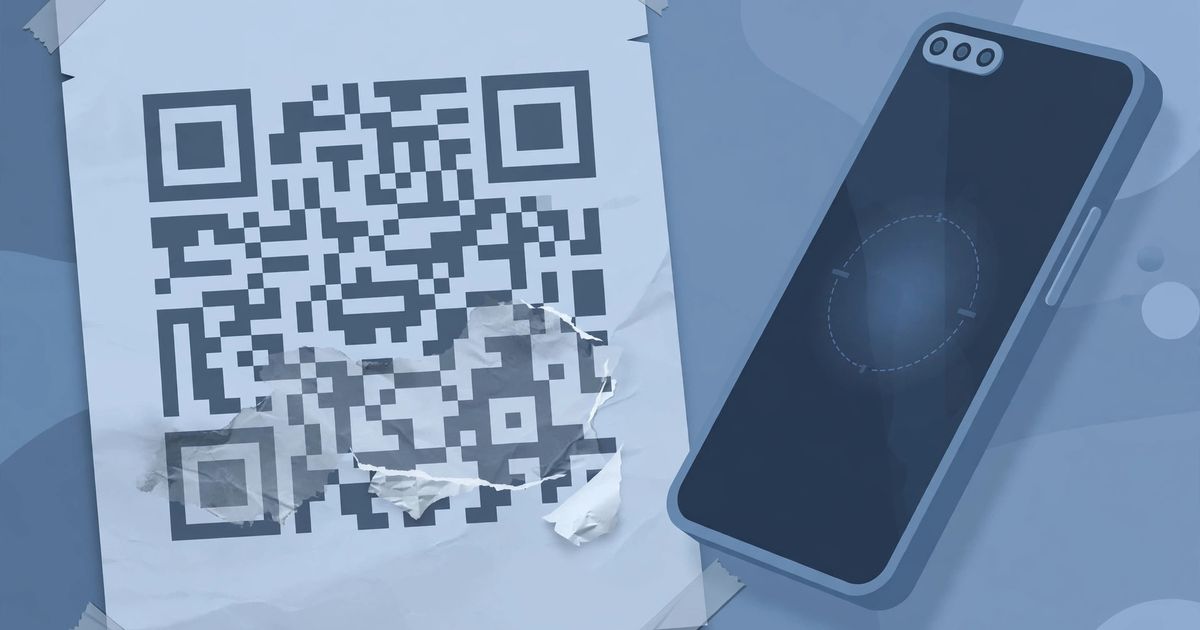
Your phone points at a QR code and nothing happens. Before blaming the camera, check the code itself: in most won't-scan cases the code is too small for the distance, too low-contrast, missing its quiet zone, damaged past what its error correction can repair, or pointing at a destination that no longer exists. Work through these nine causes in order — the first five are about the printed code, the next two about the phone, and the last two about what the code contains — and you will find the fault before you reprint anything.
One quick test first, because it splits the problem in half: try scanning the code on a different phone, and try scanning a different, known-good code on your phone. If another phone reads your code, the fault is in your phone or its settings. If no phone reads it, the fault is in the code. If your phone reads nothing at all, the fault is in your phone. That two-minute test tells you which half of this post to start with.
| Symptom | Most likely cause | Fix first |
|---|---|---|
| Nothing happens at any distance | Inverted colors, missing quiet zone, or wrong content | Check contrast, border, and what the code encodes |
| Scans up close but not from normal distance | Code too small, or too dense | Enlarge it, or shorten the encoded data |
| Scans sometimes, fails in bright light | Glare, blur, or curved surface | Change angle, reprint matte, flatten the surface |
| Scans but opens the wrong thing — or nothing | Dead dynamic link, or mistyped destination | Check the destination, not the pattern |
| No phone feature reacts at all | Camera setting off, wrong mode, or scanning your own screen | Enable scanning, use the right mode, use a second device |
1. The code is too small for the distance
This is the most common cause, and the easiest to get wrong, because a code that scans fine on your desk fails on a poster. Phone cameras need the code's modules — the individual black squares — to be large enough, and in focus, at the distance people actually stand. The rule of thumb used across the print industry is that a code should be at least a tenth as wide as the distance it will be scanned from: a code on a table tent scanned from 40 cm needs to be about 4 cm wide, while a poster scanned from 1.5 m needs about 15 cm. A code printed small on a billboard, a shop window, or the side of a vehicle will never scan, no matter how good the camera is, because the modules are below the camera's resolving power at that range. The fix is to reprint at the right size for the real viewing distance, not the distance you tested at your desk. And test at the real distance: hold the phone where a customer would stand, not six inches from the print. If the code must stay small — a business card, a product label — shorten what it encodes instead (section 5), because a smaller data payload means larger modules at the same print size.
2. The colors are inverted, or the contrast is too low
QR readers expect dark modules on a light background. Inverted codes — light modules on a dark background — fail on most phone cameras, even though they look striking in a design, because the finder patterns (the three large squares in the corners) are detected by their dark-on-light contrast. The same failure happens more subtly with brand-colored codes: a navy code on a dark blue background, a grey code on white, or a code printed over a photograph. The scanner does not see "close enough" — it sees a pattern it cannot separate from its background. The fix is strict: black (or a very dark color) on white (or a very light color), with strong contrast between the two. If brand colors are non-negotiable, keep the modules dark and the background light, and test the exact printed colors on at least two phones before committing to a print run. A code that scans on one phone's camera app and not another's is still a bad code — the contrast margin is too thin, and the next phone will fail it.
3. The quiet zone is missing
Every QR code needs a blank margin around all four sides — the quiet zone — at least four modules wide, with nothing in it: no text, no logo, no border, no background pattern. Scanners use that empty border to tell where the code starts and the rest of the design stops; without it, the finder patterns blend into surrounding graphics and detection fails or becomes flaky. This is the cause behind codes that scan when you crop tightly around them in a photo editor but fail on the printed page, where a headline or a decorative border crowds the edge. It is also why codes placed directly against a busy background, a photo, or the edge of a label fail even when the code itself is perfect. The fix is to regenerate or reprint with the quiet zone intact — cropping a code's margin to make it fit a layout is never free, and neither is letting a designer overlay text across the border. When in doubt, add more margin than the minimum; an oversized quiet zone costs nothing, while a missing one costs the scan.
4. The code is damaged past what error correction can repair
QR codes carry built-in error correction — redundant data that lets a scanner reconstruct the content even when part of the pattern is damaged, dirty, or covered. The four levels recover roughly 7% (L), 15% (M), 25% (Q) and 30% (H) of the codewords, and our QR codes marketing guide explains which level to use when. But error correction has a hard ceiling, and real-world damage blows past it constantly: a code on outdoor signage weathered by sun and rain, a code on packaging scuffed in shipping, a code with a center logo larger than the correction level can cover, or a code printed on a surface that has been folded across the pattern. The symptom is a code that used to scan and now does not, or a code that scans on a good day and fails when the light is poor — the damage sits just at the edge of what correction can handle, so small changes tip it over. The fix depends on the damage: reprint at a higher error-correction level (H for anything that will be handled, weathered, or logo-covered), keep logos small and centered, and never fold, crease, or laminate over a code in a way that distorts the module grid. For codes already in the wild, the only honest fix is a reprint — no phone setting repairs a pattern that no longer contains enough intact data.
5. The code is too dense: too much data in too little space
A QR code can hold over 4,000 characters, but capacity is the enemy of scannability. More encoded data means a denser grid of smaller modules, and phone cameras at a distance, at an angle, or in poor light struggle disproportionately with dense codes. The classic offender is a long destination URL loaded with tracking parameters, UTM tags, and session IDs — the printed code becomes a tight, noisy grid that only scans from inches away. The fix is to shorten what the code encodes: use a short, clean destination URL (a redirect you control, kept short, rather than the full tracking-laden address), drop unnecessary parameters, and prefer a static code with a short payload over a long one. The same logic applies to vCard and Wi-Fi codes stuffed with optional fields — every extra field adds modules. If the payload genuinely cannot shrink, the code must grow: a dense code needs a larger print size to keep its modules readable, which brings you back to section 1. Density and size are one trade-off, not two separate problems.
6. Glare, blur, and curved surfaces
Even a perfect code fails when the camera cannot see it cleanly. Glare is the worst offender: a code behind glass, on a laminated menu, or on a glossy screen reflects the light source straight back into the camera, washing out the modules. Blur comes from movement, a dirty lens, or a camera that cannot focus at the code's distance — especially small codes, where the focus margin is thin. Curved surfaces — bottles, cups, cans — distort the module grid geometrically, so the squares the camera sees are no longer squares. The fixes are practical, not technical: tilt the phone or the code to move the reflection off the pattern, print on matte stock instead of gloss for anything handled or displayed under lights, clean the lens (a smudged lens is a shockingly common cause), hold steady and let autofocus lock before expecting a result, and on curved surfaces, keep the code small relative to the curve so the distortion stays within what the reader tolerates — or move the code to a flat part of the packaging. If a code only scans in some lights and not others, suspect glare first: it is the cause that changes with the room, not the code.
7. The phone's scanning is off, or you are in the wrong mode
If no code scans on your phone — including codes you know are good — the fault is in the phone. On iPhones, QR scanning lives in the Camera app and the Control Center Code Scanner; Apple's own scanning guide covers enabling the Code Scanner control and what to do when the link does not appear. On Pixel phones, the Camera app's scan suggestions toggle does the same job — Google's Pixel scanning guide walks through the setting and the Quick Settings scan tile. Common phone-side traps: scanning in portrait or video mode on cameras that only detect codes in photo mode; a third-party camera app that never implemented code detection; and the most human trap of all — trying to scan a code that is displayed on the same phone's screen. A camera cannot point at its own display, so a code in an email, message, or web page on the phone you are holding needs a different route: a screenshot read by Live Text or Lens, or a second device. If one phone reads the code and yours does not, compare settings before blaming the code.
8. The code scans, but the destination is dead
This one feels like a scanning failure but is not: the camera reads the code perfectly, and then nothing useful happens — a dead link, a "page not found," or a Wi-Fi network that rejects the password. With dynamic QR codes, the printed pattern encodes a short redirect through the provider's server, so if that provider shut down, the account lapsed, or the destination was changed or deleted, every code ever printed with it breaks at once even though the pattern itself is flawless. With static codes, the equivalent failure is a destination that moved or a Wi-Fi password that changed after printing — the code faithfully delivers outdated data. The fix is on the content side: check the decoded destination (most scanner apps show it before opening), confirm the page loads and the credentials are current, and for anything printed permanently, prefer static codes whose destination you control directly over dynamic codes that depend on a third party staying in business. When a code "stopped working" months after printing, this section — not the pattern — is almost always the answer.
Picking the best QR code generator so the next code scans first time
Most won't-scan failures are created at generation time, not at print time, so the generator you use matters. The best QR code generator for reliable real-world codes is one that keeps the payload short, picks the smallest QR version that fits your data (so modules stay as large as possible), lets you choose a high error-correction level when the code will be printed, handled, or logo-covered, and preserves the quiet zone in its download instead of trimming it to look tidy. It should also print at real sizes with the margin intact, because a code that looks right on screen and loses its border in the export is a code that will fail on paper. Generate a free QR code with those settings — short destination, high error correction for print, quiet zone preserved — and then test the printed result at the real viewing distance on two different phones before committing to a full print run. Two phones, real distance, real light: that test catches eight of the nine causes in this post before they cost you a reprint.
FAQ
Why won't my phone scan a QR code that scanned yesterday?
Something changed: the code was damaged, the destination went dead (for dynamic codes), the lighting changed (glare), or a camera setting was toggled off. Test the code on a second phone and a known-good code on your phone — the combination names whether the code, the destination, or your phone changed.
What is the best free QR code generator for codes that scan reliably?
The best free QR code generator for reliability keeps payloads short, uses the smallest QR version that fits the data, offers a high error-correction level for printed codes, and preserves the quiet zone in its download. Avoid generators that trim the margin, force branding into the pattern, or lock the destination behind a subscription — all three create failures that only appear after printing.
Can I fix a QR code that won't scan without reprinting it?
Only if the fault is not in the printed pattern: a dead destination can be fixed at the redirect, a camera setting can be re-enabled, and glare can be avoided by changing the angle. If the pattern itself is too small, too dense, inverted, damaged, or missing its quiet zone, no phone setting repairs it — the code must be regenerated and reprinted.
Does a logo in the middle of a QR code break scanning?
It can, if the covered area exceeds what the code's error correction can reconstruct. Use the highest error-correction level (H, about 30%) and keep the logo small and centered. A logo over a code generated at a low correction level is one of the most common ways to produce a code that looks fine and fails to scan.
Why does my QR code scan on one phone but not another?
Because the code sits at the edge of readability — thin contrast, small modules, or damage near the correction limit — and different cameras and scanner apps have different tolerances. A code that only scans on some phones is a marginal code: increase the size, the contrast, or the error-correction level until it scans on all of them.
How big should a printed QR code be?
At least a tenth as wide as the distance it will be scanned from — about 4 cm for a table tent scanned from 40 cm, about 15 cm for a poster scanned from 1.5 m. When in doubt, print larger and test at the real distance on two phones before the full run.




Comments
No comments yet. Be the first to share your thoughts below.