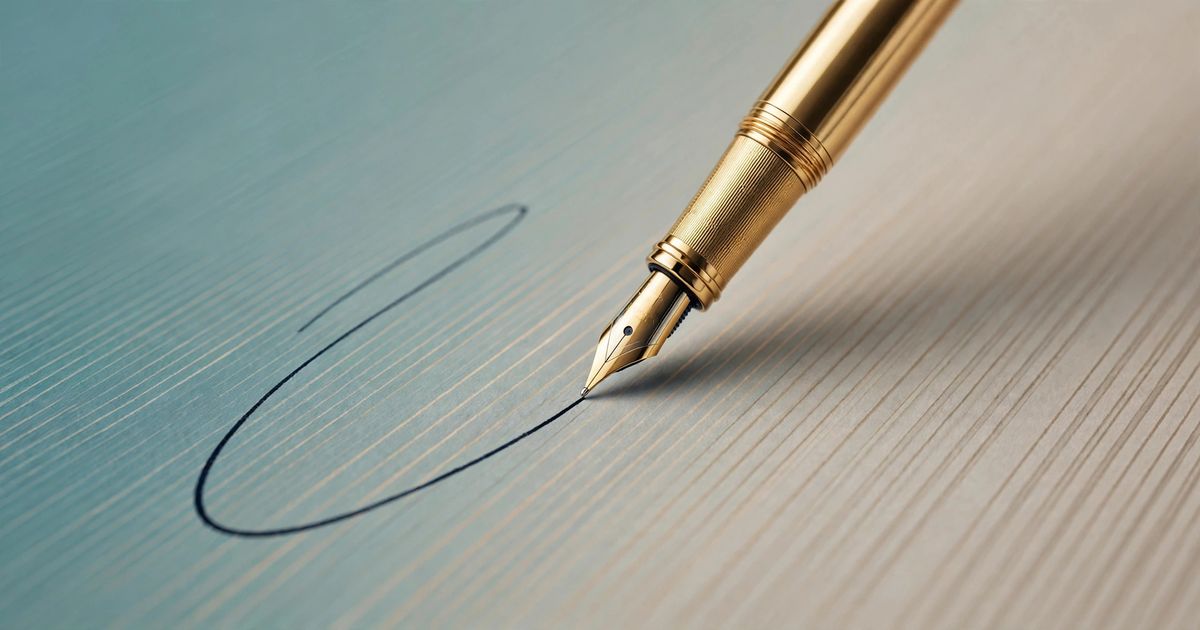
Contracts, offer letters, NDAs, freelance agreements — sooner or later every document lands in your inbox as a PDF with one awkward empty line: sign here. Printing, signing, and scanning is a relic. What you need is a clean digital signature image with a transparent background that drops neatly onto any document. A transparent signature maker creates exactly that in seconds.
Why the background matters more than the signature
A signature saved on a white background looks fine on a white page — until it doesn't. Paste it onto a shaded contract, a colored letterhead, or a photo, and you get an ugly white box around your name. A transparent PNG has no box: only the ink strokes show, so the signature blends into whatever sits underneath. That is the single difference between a signature that looks pasted-on and one that looks native.
Ways to make a digital signature, compared
There are four common routes. They differ wildly in effort and output quality:
| Method | Effort | Transparent background | Cost |
|---|---|---|---|
| Sign paper, photograph it | High — sign, shoot, crop, clean up | No, unless you edit it | Free but fiddly |
| Photoshop or image editor | High — manual background removal | Yes, if you know the tools | Paid software, real skill needed |
| Online signature generators | Low | Sometimes | Often watermarked or account-walled |
| Draw Signature (Android app) | Low — draw or type, tap save | Yes — one-tap transparent PNG | Free |
Create a transparent signature in under a minute
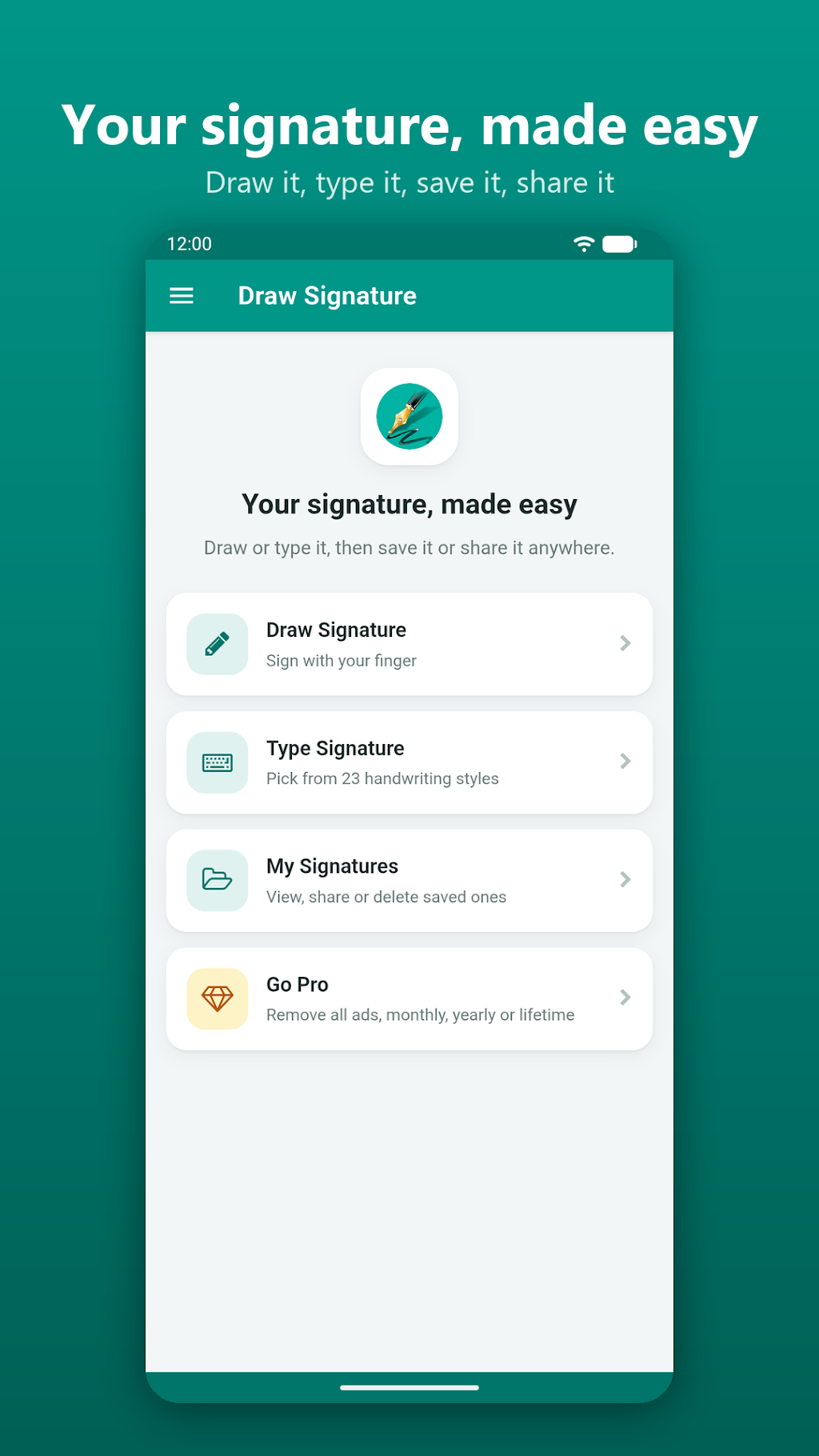
The fastest path I know is the Draw Signature app for Android — full disclosure, it's my own app, built for exactly this job. Here's the whole workflow:
- Draw it or type it. Draw your signature with your finger on a large pad — 18 ink colors, adjustable pen thickness, undo anytime — or type your name and pick from 23 handwriting styles. Long names auto-resize to fit.
- Practice until it feels right. The pad is unlimited, so iterate. A signature you can reproduce consistently beats a fancy one you can't.
- Save as transparent PNG. One tap saves with a white background or as a transparent PNG — the transparent version is the one you want for documents.
- Place it on your document. Insert the PNG into your PDF editor, Word doc, or email signature. It sits cleanly on any background.
Drawn or typed — which looks better?
A finger-drawn signature looks personal and is harder to imitate, which matters if the signature carries any weight. A typed signature in a good handwriting style looks cleaner and more consistent — better for email signatures and repeated use. The app keeps both in a saved library, so there's no reason not to have one of each: drawn for contracts, typed for everyday use.
Tips for a signature that looks professional
- Keep it simple. The best signatures are 2–4 fluid strokes, not detailed drawings. Complexity doesn't scale down well.
- Use dark ink. Black or dark blue reads as authoritative on documents; save the colors for fun.
- Test it small. View the PNG at the actual size it'll appear on the page. If it's unreadable at 2 cm wide, simplify.
- Save the transparent version as your master. You can always place it on white later; you can't remove white cleanly afterward.
FAQ
Is a drawn signature legally binding?
In most jurisdictions, an electronic signature on an agreement is enforceable — what's being signed matters more than how. This is different from a cryptographic digital signature, which mathematically proves authenticity. For a plain overview of the legal concept, see electronic signatures. When in doubt, check what the other party accepts.
Transparent vs. white background — which should I save?
Transparent, always, as your master copy. It works on every background; a white-background version only works on white.
Can I use the signature in Word and PDF editors?
Yes — any editor that accepts image insertion takes a PNG. In Word: Insert → Pictures. In most PDF readers: Fill & Sign → add image.
Is the app really free?
Yes. Drawing, typing, and saving — including transparent PNG export — are free. There's an optional Pro upgrade that removes ads.
Where do I get it?
It's on Google Play as Draw Signature — install it, make your signature once, and you'll never print-scan a document again.


Comments
No comments yet. Be the first to share your thoughts below.